Wi-Fi channels explained: how to reduce interference and improve performance
How Wi-Fi channels work, what interferes with them, and how to plan 2.4, 5 and 6 GHz in a UK building so handhelds, laptops and kiosks stay connected.

In this article
Much of the channel trouble on a business site is self-inflicted: access points that can hear each other sharing a channel, often at full power. To cut it, survey first, use only channels 1, 6 and 11 on 2.4 GHz, carry most traffic on 5 GHz at 20 MHz wide, set power no higher than coverage needs, and check what your devices support before you choose.
Staff work at the speed the network answers: on a pick line, a scan is not finished until the server replies. Put hundreds of devices in one building, with a neighbour's network through the wall, and keeping that reply quick gets hard. Most of the difference comes down to channels.
How Wi-Fi channels work
Wi-Fi carries data on channels: slices of radio spectrum in the 2.4 GHz and 5 GHz bands and, on newer equipment, the 6 GHz band. Every exchange between a device and an access point travels on one of them.
A channel is shared airtime: within earshot, one radio transmits while every other waits. And earshot is wide. A Wi-Fi radio waits whenever it hears another Wi-Fi transmission on its channel at -82 dBm or stronger, yet a handheld needs roughly -67 dBm to work well. So an access point three aisles away, too weak to serve your scanner, can still make it wait.
The more networks and devices overlap on one channel, the less airtime each gets: that is congestion. Interference is signal that clashes with yours or drowns it out, corrupting data so it has to be sent again and lowering signal quality. Both cut throughput and reliability.
Two common faults have names. Co-channel interference (strictly, contention): access points that hear each other on the same channel, so they and their devices queue for the same air. Adjacent-channel interference: access points on overlapping channels, such as 1 and 3 on 2.4 GHz. That is worse. Radios on overlapping channels cannot decode each other, so each one waits only when the other reaches -62 dBm, a hundred times stronger; below that, both transmit at once and corrupt each other's data.
Where interference comes from
- Neighbouring Wi-Fi networks. Other tenants, the unit next door, phone hotspots, and your own access points when two that can hear each other share or overlap a channel.
- Bluetooth peripherals. Headsets, ring scanners and mobile printers paired over Bluetooth all use 2.4 GHz.
- Appliances and other electronics. A staff-kitchen microwave oven works at around 2.45 GHz, inside the same band, as do some wireless video senders and sensors.
- The building itself. Walls, steelwork, lift shafts and racking full of stock absorb and reflect signal, so it arrives weaker and is easier to drown out.
Left unchecked, interference shows up as lost time, not an error message: handhelds dropping off mid-task, screens hanging while a scan uploads, a pick run finishing late while staff wait on the network.
Good Wi-Fi takes more than installing access points
Putting up access points is the easy part. Reliable performance needs infrastructure design (how many access points, where, with which antennas), channel optimisation (channel, width and power for each radio) and interference mitigation (finding the sources and designing around them), planned in that order: no channel plan rescues an access point in the wrong place.
Start with a Wi-Fi site survey
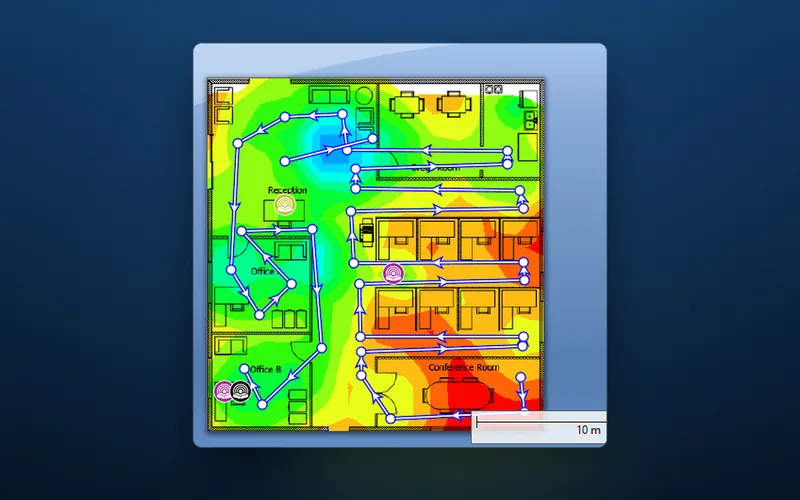
The first step is a thorough site survey. It examines the structure and layout of the premises to show how signal really behaves there, measures signal strength and coverage area by area, and maps the spots with poor connectivity, known as dead zones. It also finds each interference source and pins it to a place: whose network, which Bluetooth printer, which microwave, which wall.
Judge the results against figures, not bars on a phone. Common design targets for handhelds are a signal of -67 dBm or stronger, a signal-to-noise ratio (SNR) of 25 dB or more, and channel utilisation below about 50%. Our Wi-Fi troubleshooting guide explains what each one tells you.
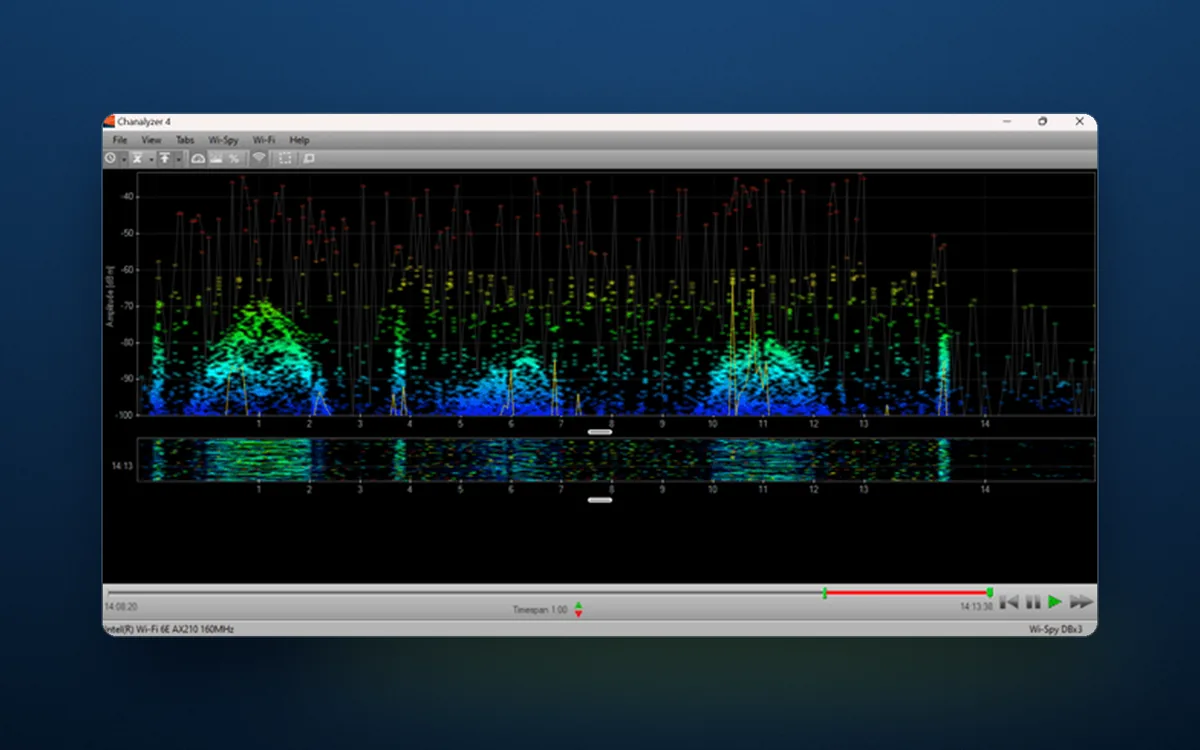
That first-hand data should decide where the access points go and which channel each one gets, so that together they minimise interference hotspots and maximise coverage. On a DW WiFi site survey we move a battery-powered access point from position to position until the whole site is mapped, and run spectrum analysis to catch interference that Wi-Fi tools cannot see, such as a microwave oven.
Choose the right channels
Once the access points are placed, channel choice matters most: it decides how many can work side by side without queuing for the same air. The UK counts of channels that do not overlap, by width:
| Band | 20 MHz | 40 MHz | 80 MHz | 160 MHz |
|---|---|---|---|---|
| 2.4 GHz | 3 (1, 6, 11) | Avoid | None | None |
| 5 GHz, no DFS (36 to 48, 149 to 165) | 9 | 4 | 2 | 0 |
| 5 GHz, with DFS (adds 52 to 64, 100 to 144) | 25 | 12 | 6 | 2 |
| 6 GHz (lower band) | 24 | 12 | 6 | 3 |
2.4 GHz gives the broadest coverage, because its signal travels further. The cost is congestion. Its 13 UK channels are only 5 MHz apart, but each signal is about 20 MHz wide (22 MHz for older 802.11b), so in practice only three stay clear of each other: 1, 6 and 11. A plan of 1, 5, 9 and 13 fits on paper, but one neighbour on 6 or 11 overlaps two of yours.
Nearby networks, Bluetooth devices and microwave ovens all share 2.4 GHz too, so in busy, densely populated areas it congests quickly. Keep it at 20 MHz, and where there are many access points, switch some 2.4 GHz radios off or turn them down: three channels cannot keep them all apart.
5 GHz offers higher data rates and far more channels that do not overlap, so connections are faster and more reliable. Its higher frequency gives a shorter range, and walls and other barriers block it more easily, so access points need careful placement to make up for the signal loss.
Most of its channels carry radar rules. On 52 to 64 and 100 to 144, access points use Dynamic Frequency Selection (DFS): they listen for radar for at least a minute before transmitting (ten minutes on 120 to 128, which share their spectrum with weather radar), and on detecting it they leave at once and stay off that channel for 30 minutes, briefly dropping their devices. A handheld without DFS support cannot join those channels at all. Nine channels are free of radar rules: 36 to 48, plus 149 to 165, which Ofcom freed from DFS for indoor use at up to 200 mW in 2020. Equipment built to wider European rules may lack 144 and 149 to 165, so check both ends.
Bonding channels into 40, 80 or 160 MHz speeds up one device but uses up channels fast. Take a warehouse that needs 24 access points to reach -67 dBm in every aisle. At 20 MHz, if every handheld supports DFS and the full UK set, each access point can have a channel of its own; without DFS, nine channels go round, two or three access points on each, which the survey can place well apart. At 80 MHz there are six channels with DFS, four radios on each, or two without, twelve on each, and down long open aisles many of those twelve hear each other. A scan is a small burst of data that gains little from width and loses a lot in a queue, so for handhelds start at 20 MHz and use 40 MHz only where the survey shows channels to spare.
6 GHz comes with Wi-Fi 6E and Wi-Fi 7 (IEEE 802.11be). Ofcom opened its lower part, 5925 to 6425 MHz, to Wi-Fi in 2020: 24 channels of 20 MHz, no radar rules, and little crowding because only newer devices can use it. The catches: shorter range again; outdoors, very low power only unless an automated frequency coordination (AFC) service controls the access point; and both ends need Wi-Fi 6E or later with WPA3 security. Scanners older than Wi-Fi 6E will never see it, so on a handheld site 6 GHz eases 5 GHz by taking newer laptops and tablets off it rather than replacing it.
Transmit power, data rates and network names belong in the plan too. A full-power access point is heard by more neighbours on its channel, and a handheld, which transmits more weakly, may hear it without being heard back, so set each access point's power to cover its own area and little more. Every network name (SSID) costs airtime as well: each radio announces each one about ten times a second, at the network's slowest data rate. Keep to a few SSIDs, and on 2.4 GHz switch off the old 802.11b rates (1, 2, 5.5 and 11 Mbps) unless a device on site still needs them.
Let your devices set the limits
The right balance between the bands depends on the building, on what the network carries and, above all, on the devices. Before choosing anything, list every device type on site with the bands it supports, whether it can use DFS channels and 149 to 165, and whether it supports WPA3; the channel list on its data sheet shows most of this. The oldest device you cannot replace sets the plan:
| Oldest device you cannot replace | 5 GHz channels at 20 MHz | What it means |
|---|---|---|
| 5 GHz with DFS and 149 to 165 | 25 | 20 MHz everywhere, and 40 MHz where the survey shows room |
| 5 GHz with DFS, without 149 to 165 | 19 or 20 | Almost as much room |
| 5 GHz without DFS, with 149 to 165 | 9 | 20 MHz only, with channel reuse planned from the survey |
| 5 GHz without DFS or 149 to 165 | 4 | Nearly as tight as 2.4 GHz: low power and careful reuse, or replace the devices |
| 2.4 GHz only | None (3 on 2.4 GHz) | Replace them, or keep 2.4 GHz for them and move everything else to 5 GHz |
Within those limits, automatic channel selection can do the routine work: advanced access points pick their own channels and move dynamically when interference appears. Give them the channels your devices support, the widths allowed and a power range, and put them in the right places first, because no algorithm fixes a poor design.
Invest in quality equipment
Equipment cannot add channels, but it can carry more on each one. On a site with hundreds of devices, an access point that only does the basics is a false saving. Three things are worth paying for, and the first two need support at both ends, so check the handhelds' data sheets too:
- Beamforming. The access point adjusts the signal from each of its antennas so they add up at each connected device instead of spreading evenly, giving a stronger signal and better coverage where the device is. Because it re-aims as devices move, competing networks and devices degrade it less.
- MU-MIMO (Multi-User, Multiple Input, Multiple Output). It sends data to several devices at once instead of in turn, raising throughput, capacity and responsiveness so bandwidth is shared efficiently as devices are added. It gains most when those devices are spread apart, and on Wi-Fi 5 it works only from the access point to the devices. Wi-Fi 6 adds OFDMA, which splits a channel so one transmission carries small bursts for several devices, in either direction: a better fit for handhelds sending scan after scan.
- Antenna options. Connectors for external antennas, so a directional patch antenna can cover one aisle and hear less of the next, letting channels repeat sooner.
Maintain the network proactively
A channel plan is right on the day it is set and drifts after that. Regular checks keep the network performing for the years it should last, and catch a fault while it is one access point rather than a site-wide outage. Check the hardware, the access points and their configuration, and watch for:
- signal strength, throughput or latency outside the normal range for that access point or area
- channel utilisation creeping towards 50%
- rising retries, a sign of interference or of devices at the edge of coverage
- an access point that keeps changing channel, a sign of radar detections on DFS channels or of interference it keeps running from
Monitoring turns those checks into a real-time view of network health and its trends. A cloud management platform logs these figures for every access point, flags anomalies, and keeps the history that shows whether a bottleneck or failure is one access point, one area or the whole site. Re-check whenever the building changes: new racking, a seasonal stock build, a new neighbour, a new fleet of handhelds.
How the plan changes with the building
- High-bay warehouse. Racking turns each aisle into a corridor, and full pallets, especially of liquids or paper, absorb signal, so survey at peak stock. Access points in or aimed down the aisles beat roof-mounted ones pushing through stock.
- Food factory. Stainless steel reflects signal and chillers lined with metal-faced panels block it, so a cold room usually needs its own access point, in an IP-rated enclosure. The upside: channels can be reused either side of those walls.
- Steel foundry. Heavy steel and overhead cranes move through the coverage during a shift, so survey with the plant running and design with margin above the target.
- School. A class of 30 can come online in the same minute. An access point per classroom or two, at low power and 20 MHz, beats a few loud ones in corridors.
- Listed building. Thick solid walls stop 5 GHz between rooms and consent limits fixings and cable routes, but those walls also isolate each access point, so channels can be reused room by room.
Book a Wi-Fi survey consultation
Which service fits depends on where you are:
- Planning a new network from floor plans: a predictive Wi-Fi survey models how many access points you need and where.
- Planning access points for an existing building: a Wi-Fi site survey measures the real building with a live access point.
- A network in place that needs proving: a Wi-Fi verification survey measures it on site with every access point running.
- A network that already struggles: a Wi-Fi Health Check surveys it and reviews the access point configuration, and the client devices where relevant, to find causes such as co-channel and adjacent-channel interference.
We have more than 20 years of experience deploying Wi-Fi into schools, warehouses, factories, hotels, listed buildings and office blocks, including alongside software providers rolling out to their customers' sites. Every survey ends in a bespoke report written for your building. To take the next step, get in touch with DW WiFi today.