Deploying Cambium XE3-4 Wi-Fi 6E access points, and when to switch on 6 GHz
My March 2024 install of three Cambium XE3-4s, from survey to cnMaestro, and the four checks that tell a business when to switch a radio to 6 GHz.

In this article
Fit Wi-Fi 6E access points when the devices that matter will gain 6 GHz radios within the access points’ working life, and expect little from 6 GHz until they do. Cambium’s recommended setting for the XE3-4 bridges the gap: 2.4 GHz plus two 5 GHz radios, one switched to 6 GHz once enough 6 GHz devices connect. In March 2024 I upgraded my own home office to three XE3-4s, Cambium’s latest Wi-Fi 6E tri-band access points, and my device count agreed: 6 GHz was unlikely to give me any immediate benefit.
Three access points in a home office is not a warehouse, and I will not pretend it is; what carries over is the order of work and the 6 GHz decision. A declared interest: DW WiFi is a Cambium partner and supplies the Cambium Networks Wi-Fi range, so weigh my enthusiasm accordingly.
The install at a glance
- Site
- My own home office, replacing Wi-Fi 5 dual-band access points
- Access points
- Three Cambium XE3-4, Wi-Fi 6E, ceiling mounted
- Positions
- Set by a full Wi-Fi site survey in TamoGraph, not guesswork
- Management
- In the cloud, through cnMaestro, which Cambium offers free
- Record
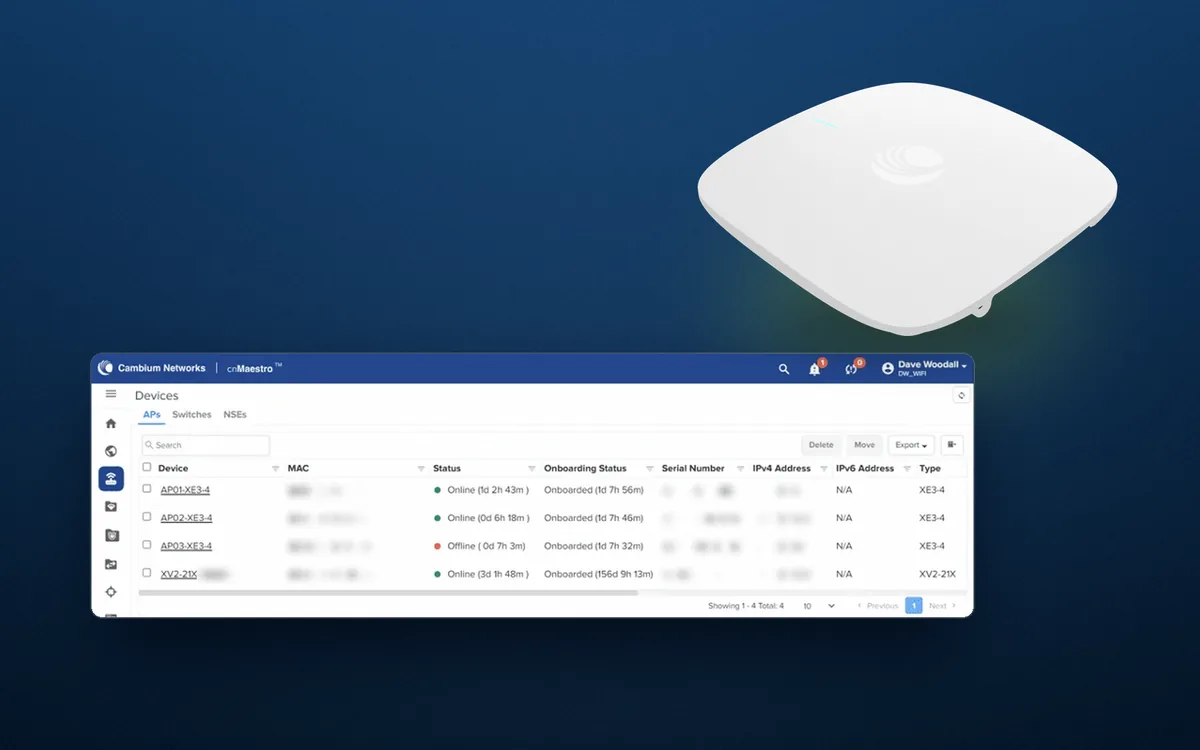
- cnMaestro’s device list mid-install: three onboarded, AP03 unplugged while being fitted
Positions: the survey decides, even for three
Three access points is a small job, and I still let a full Wi-Fi site survey in TamoGraph set every position. I had upgraded my laptop to a tri-band radio some time before, because you cannot survey the 6 GHz band without a 6 GHz radio.
A business site gives the survey more to find. Racking and stock absorb signal in ways a floor plan does not show, and the picture changes as the racking fills. For handheld scanners and voice, a common design target is -67 dBm or stronger with a signal-to-noise ratio (SNR) of 25 dB or more, plus a second access point strong enough to roam to; miss it and a scanner drops out at the far end of an aisle. In a listed building, where fixings often need consent, the survey makes the most of the few positions allowed.
The access point: Cambium XE3-4
The model is the XE3-4, an indoor access point with integrated omni-directional antennas. The ‘E’ in Wi-Fi 6E marks an extension of the Wi-Fi 6 standard (IEEE 802.11ax) to include the new 6 GHz band, hence its tri-band radios: the familiar 2.4 GHz and 5 GHz, plus 6 GHz. Cambium’s own video covers unboxing and installing it, with a little background on its features.
Cambium’s radio plan: two 5 GHz radios now, 6 GHz later
The feature that sold the XE3-4 to me is its software-defined radio. Cambium lists 2x2 radios for 2.4 GHz and 5 GHz plus a 4x4 radio that software sets to 5 GHz or 6 GHz, so two of the three radios can run on 5 GHz and one of those can switch to 6 GHz later. Cambium recommends the legacy 2.4 GHz radio plus two 5 GHz radios, to increase capacity: each radio works one channel, so the access point offers two 5 GHz channels’ worth of airtime instead of one. cnMaestro then monitors, on an ongoing basis, for 6 GHz-capable devices joining the network, and when they reach a threshold it sends a notification offering to reconfigure one radio to 6 GHz.
2.4 GHz stays for the older scanners, printers and sensors that have nothing else, though with only three non-overlapping channels (1, 6 and 11) it is the tightest band.
My device count: no immediate gain from 6 GHz
The count shows why 6 GHz was unlikely to help me yet. On the Wi-Fi 5 dual-band system I replaced, I connected as many devices as possible to 5 GHz, and it adequately supported all of them: laptops, tablets, smartphones, CCTV cameras, smart switches, speakers, TV streaming, an AV receiver and a projector. Nearly all of them have dual-band radios only, so they cannot connect on 6 GHz, and only some can be upgraded to tri-band radios (my laptop was one). Why buy 6E at all, then? CCTV and TV streaming are the main culprits for bandwidth on 5 GHz, since much streamed TV is now 4K and the CCTV cameras are 4K too, often viewed on mobile devices, so a 6 GHz band to share out that load future-proofs the network. 5 GHz will continue to suit most home office environments; 6 GHz becomes attractive when 5 GHz is too congested for the ever-growing number of devices.
On a business site the count is the same exercise with a different list: handheld scanners, laptops, label printers, voice handsets. Note which have 6 GHz radios and WPA3, and when each fleet is due for replacement. That count, not the spec sheet, decides when 6 GHz earns a radio.
The test on a business site
Switch a radio to 6 GHz when all four answers are yes:
| Check | Why it matters | How to find out |
|---|---|---|
| Do the devices that matter have 6 GHz radios? | 6 GHz carries nothing until clients can join, and on the XE3-4 it costs you one of the two 5 GHz radios. | Spec sheets, then cnMaestro’s notification. |
| Do they support WPA3? | 6 GHz networks must use WPA3 (or Enhanced Open on a guest network with no password), so a WPA2-only device cannot join there. | Firmware notes and one test device. |
| Is 5 GHz short of channels? | Most UK 5 GHz channels are DFS channels: the access point must move if it detects radar. The 6 GHz band Ofcom opened in 2020 (5925 to 6425 MHz) has no DFS and room for six 80 MHz channels. | A survey showing busy, shared channels. |
| Will 6 GHz reach where they work? | 6 GHz cells are slightly smaller than 5 GHz cells, so a 5 GHz survey does not show where 6 GHz reaches. | A survey on 6 GHz itself. |
How the test plays out by site type
- Warehouse with handheld scanners. Scanners need steady coverage up the racking more than speed. Unless the fleet has 6E radios and WPA3, stay on two 5 GHz radios until the next handheld refresh; if that is years away, a dual-radio Wi-Fi 6 model such as the XV2-2X covers the bands they use.
- School. Busy classrooms put access points close together, so the shortage is channels, not signal. 6 GHz pays here first, once the laptops and tablets can use it.
- Food factory or steel foundry. The building is the hard part: washdown, cold rooms, steel that reflects signal. Positions decide reliability, not the band.
- Software vendor rolling out handhelds. Prove your devices on 6 GHz with WPA3 before a customer switches over, and keep 5 GHz as the fallback. The lower 6 GHz band is harmonised across the EU too, so the test carries to European sites.
Wi-Fi 7 (IEEE 802.11be), since ratified, also uses 6 GHz, so the rule holds; our history of the Wi-Fi standards explains the generations.
Management: cnMaestro in the cloud
The XE3-4 can be managed on-premises or in the cloud. I chose the cloud, through cnMaestro, Cambium’s web-based cloud management portal: no on-site controller to buy or look after, and the network is visible from any browser.
cnMaestro being free is the biggest draw of Cambium access points, and it made me sceptical: ‘something for nothing’ rarely rings true. The free tier is cnMaestro Essentials; the paid tier, cnMaestro X, adds advanced features such as long-term statistics storage, so budget for X if you need months of history to show a board or a customer.
What won me over was use. About five months of cnMaestro with an entry-level Cambium Wi-Fi 6 access point, the XV2-21X (its timer in the second screenshot below reads 156 days onboarded), left me very impressed and gave me the confidence to step up to the high-end, tri-band XE3-4.
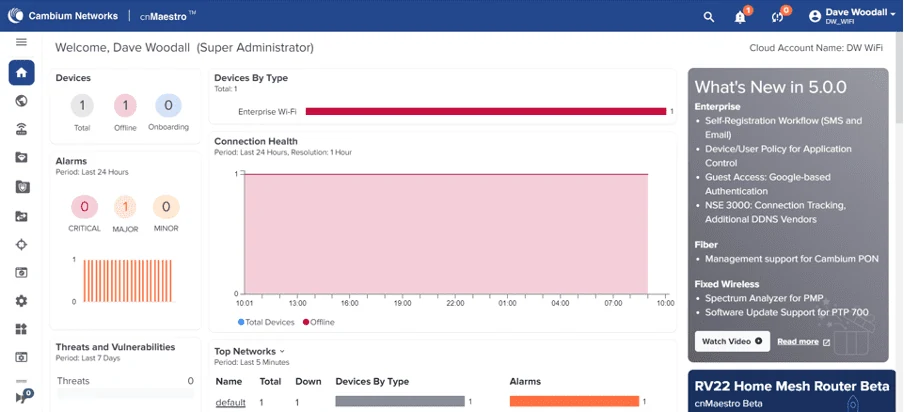
If you are new to Cambium Networks Wi-Fi, you can register for a free cnMaestro account at cambiumnetworks.com (at the time of writing, through the ‘Register’ link at the top right of the home page). The cnMaestro home page then gives an instant status of your Wi-Fi network.
Onboarding: claim the access points, then mount them
‘Onboarding’ means claiming your new access points and adding them to the cnMaestro cloud management platform; other manufacturers call the same process ‘adopting’. This tutorial covers creating a new cnMaestro account, configuring a basic Wi-Fi network, then onboarding new access points: a great place to start if you are new to Cambium Networks Wi-Fi and want to get up and running quickly.
Here are my three new XE3-4 access points, successfully onboarded to my cnMaestro cloud platform:
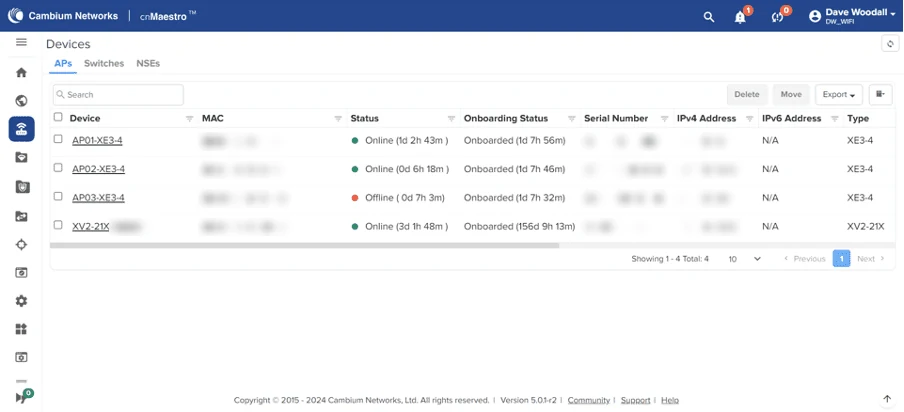
The timers record the order of work. All three were onboarded within 24 minutes of each other, about 32 hours before the screenshot, and I was then physically installing them in the positions the full Wi-Fi site survey identified. AP01 had been online for over a day and AP02 for six hours; AP03 shows as ‘Offline’ only because it was unplugged from the network while it was being installed.
On a bigger site, claim and name each access point after its survey-plan position before it goes up, so the only job left at the top of the ladder is plugging it in, then treat the device list as the install checklist: every position online before the installer leaves.
After the install, and what I would do on your site
My plan was to monitor performance and reliability over the following weeks and months before giving an appraisal, so read this as the install record, not the verdict. On your site I would not wait months, and the work starts before anything is bought:
- Count the devices. Which have 6 GHz radios and WPA3, and when each fleet is due for replacement.
- Survey before you buy. A Wi-Fi site survey sets every position, allowing for racking, steel and stone walls.
- Buy for the count. Wi-Fi 6E if 6 GHz devices will arrive within the access points’ life, otherwise Wi-Fi 6. Start on 2.4 GHz plus two 5 GHz, and switch one radio when all four checks above are yes.
- Verify with the access points live. A Wi-Fi verification survey measures every area with each access point operational, plus spectrum analysis for interference, so the result can be checked against the targets the design set.