Ten Wi-Fi planning and configuration mistakes that cost you performance and productivity
Skipped surveys, clashing channels, full-power defaults, legacy data rates and old firmware: what each mistake does to business Wi-Fi, how to spot it and the fix.

In this article
When business Wi-Fi drops out or crawls, the fault is often the setup and configuration rather than the access points: the building was never measured, the channels clash, the factory settings stayed, or nobody rechecked after the racking, the devices or the firmware changed. Cloud software, video calls and mobile devices, down to every live scan on a handheld, depend on that Wi-Fi, so each of these mistakes costs productivity, and new access points will not fix it.
Here are the ten most common, with how to spot each one and the fix. Already have a symptom? Start from the table.
| What you notice | Start with |
|---|---|
| Drop-outs in certain aisles, rooms or corners | 1 Survey, 2 Placement |
| A laptop shows good signal where the handhelds struggle | 5 Default power, 7 Devices |
| Full signal bars, but everything is slow | 3 Channels, 7 Old data rates |
| Slow only at busy times, such as shift start or a class logging on | 4 Capacity, 8 Bandwidth |
| A new device will not connect | 6 Security, 7 Devices |
| Worse than last year, with no settings changed | 9 Building changes, 10 Firmware |
1. Skipping the Wi-Fi site survey
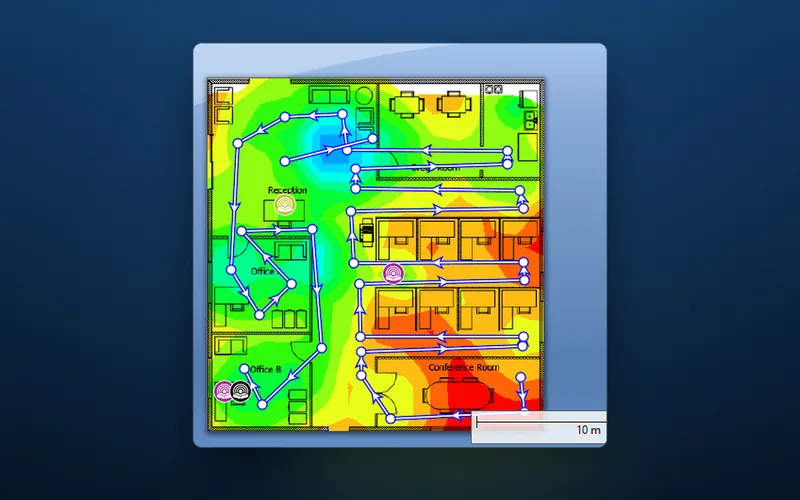
Without a survey, access points (APs) go wherever a cable already reaches and their number is a guess. Skipping a professional Wi-Fi site survey is the most fundamental mistake here, because the AP count, the channel plan and the power settings all start from what it measures: the layout, the construction materials (plasterboard, brick, stone, steel and whatever stands on the racking) and the sources of interference, from neighbouring networks to the canteen microwave. Those measurements let each AP be placed for coverage and signal strength where the work happens, not where it was easiest to mount.
A survey also needs a target. For handhelds, voice and video that is usually a signal of -67 dBm or stronger (readings are negative, so nearer zero is stronger) and a signal-to-noise ratio (SNR) of 25 dB or more, measured wherever the devices work: in a warehouse, at the height a man-up order picker lifts its operator to and inside the cold store, not just the walkway under each AP. If the handheld’s maker publishes its own figure, design to that.
2. Putting access points in the wrong places
An AP on the roof steelwork above full high-bay racking has to send its signal down through the stock, leaving dead zones in the aisles below. Spread APs to cover the entire area, allowing for walls and large metal objects that block the signal, such as racking and machinery, and avoid tucking them into corners or cupboards: it looks tidy, but a corner AP sends much of its coverage into the walls.
Some spaces need a different antenna rather than a different position. The right antenna gives an alternative coverage footprint for challenging areas such as long corridors, where a directional antenna aimed along the corridor reaches further, and open-plan floors with low ceilings. In a high-bay warehouse, APs mounted lower at the aisle ends, with directional patch antennas aimed along the aisles, often outperform APs in the roof. In a listed building, thick stone walls stop signal that would cross an open office, so the walls set the AP count. Washdown areas, dusty foundries and outdoor yards need APs in IP-rated enclosures, sealed against water and dust.
3. Overlooking channel interference
A handheld in one aisle can be kept waiting by an AP several aisles away that it is not even connected to, because the two share a channel. Each Wi-Fi band is divided into slices of frequency called channels; every AP is assigned one to transmit and receive on, and each band has a finite number of channels that do not overlap.
The 2.4 GHz band has only 3 non-overlapping channels (1, 6 and 11), which allows 3 APs in the same zone; the UK permits channels 1 to 13, but the rest overlap these three. Add a fourth AP and one channel has to be re-used. If the two APs on it have overlapping coverage cells, the result is Co-Channel Interference: they take turns to transmit, slowing every device connected to either.
Earshot is wider than coverage. A radio holds back for any Wi-Fi transmission it hears on its channel at about -82 dBm or stronger, 15 dB (a thirtieth of the power) below the -67 dBm a handheld needs, so an AP too distant to serve a scanner can still make it wait. Nor does an in-between channel such as 3 or 9 help: it partly overlaps both neighbours, causing adjacent channel interference instead.
The 5 GHz and 6 GHz bands are less prone to Co-Channel Interference because they offer many more non-overlapping channels: in the UK, up to 25 of 20 MHz at 5 GHz and 24 in the lower 6 GHz band. They are not immune. Sixteen of those 5 GHz channels are DFS channels, shared with radar, which a handheld without DFS support cannot join, leaving it nine indoors. Channel Bonding, which joins adjacent channels into one wider channel to boost data throughput, then uses them up: 40 MHz halves the non-overlapping channels, and 80 MHz leaves six of the 25, or two of the nine. Free channels run out, and Co-Channel Interference returns.
Plan channels so that neighbouring APs differ and any sharing a channel are as far apart as the building allows. Keep 2.4 GHz at 20 MHz, and 5 GHz too where the traffic is mostly small scan transactions, which gain little from wider channels. And before counting on 25, check which channels every device on site can use.
4. Not planning for capacity
Coverage is whether a device can reach an AP; capacity is whether the AP can serve every device connected to it. Those devices share its channel, and so its airtime: the time available for sending data. As a business grows and more devices connect, each gets a smaller share, and a network never planned for that growth overloads.
Forty handhelds spread down the aisles of a warehouse each send a little scan data, so the job there is coverage. Thirty tablets in one classroom, opening the same video as the lesson starts, load one AP at once, so that room needs its capacity planned, often with an AP of its own.
An AP’s data sheet gives the most devices it can connect, not how many it can serve well. Plan from the devices in each area at the busiest time of day and what they run, and add capacity with more APs covering smaller areas, not louder ones. Then assess capacity regularly and upgrade before people feel it: the early warning is a channel busy more than about half the time at the busiest hour, which controllers usually report as channel utilisation.
5. Relying on default settings
Factory defaults are chosen so an AP works anywhere out of the box, which is why they are rarely right for any one site. Customise three things on every install: the power settings, which features are enabled or disabled, and the network names. Automatic channel selection is the feature to review first: an AP that changes channel mid-shift interrupts every device on it, so schedule it for a quiet hour or set the channels from the survey.
Power is the classic example. An AP on full power is heard right across a building, so devices cling to it when a nearer AP would serve them better, and same-channel APs hear more of each other. Handhelds transmit at lower power than APs, so at the edge of a loud AP’s coverage the handheld hears the AP but the AP struggles to hear the handheld. Turn power down until each AP covers its own area and no further.
Keep network names (SSIDs) few, your own rather than the manufacturer’s, and named for their purpose: staff, guest, scanners. Each is announced in a beacon about ten times a second, at the lowest basic data rate. At 1 Mbps a beacon of around 300 bytes takes about 2.6 ms, about 2.5% of the airtime per name per AP, so five names on each of four same-channel APs within earshot use about half of it before any work is done. At a lowest rate of 12 Mbps (mistake 7), about 5%.
6. Overlooking security settings
WEP, the original Wi-Fi security, can be broken in minutes with free tools, yet some older handhelds and printers still offer it. On settings that weak, anyone within range, the car park included, can recover the key, join the network uninvited and read its traffic. Do not use it, or its deprecated successor, WPA with TKIP.
Use WPA3, the latest standard, and set a strong password: on WPA2-Personal a recorded log-in can be tested against guesses offline at high speed, which WPA3-Personal’s log-in (SAE) prevents. WPA3 also makes Protected Management Frames compulsory, so a forged “disconnect” message can no longer knock devices off. Change every default password, including the admin logins on the access points and the controller. On 6 GHz, the band Wi-Fi 6E added (and Wi-Fi 7 also uses), WPA2 is not permitted: a secured network there must use WPA3.
Enterprise mode (802.1X) gives each person or device its own login, so a leaver or a lost scanner is removed without re-keying everything else. Keep guests on a network of their own, and check your devices support WPA3 before switching, because many older ones do not (mistake 7).
7. Ignoring what your devices can do
The 6 GHz radio in a Wi-Fi 6E access point is invisible to a handheld bought before Wi-Fi 6E existed. Not every device has the same Wi-Fi capabilities: configure only for the latest standards and older devices get left behind; cater only for older standards and you limit the performance of everything else. The answer is a balanced setup that accommodates the devices you actually have, based on the bands, standards and security each type supports, and judged by the device that has to work: a handheld’s small antenna usually picks up less than a survey laptop. Then:
- Retire 802.11b data rates if nothing needs them. At 1 Mbps a device takes about 50 times as long to send the same data as at 54 Mbps, while every other device on that AP waits, and beacons go out at the lowest basic (mandatory) rate. Disable the rates below 12 Mbps and make that the lowest basic rate, once you have checked that no device on site supports only 802.11b, because it locks them out.
- Steer dual-band devices to 5 GHz (band steering), leaving 2.4 GHz to the devices that have no other band.
- Give legacy kit its own network name, on WPA2 and never WEP, so the main network can run WPA3 even where older handhelds cannot.
- Test fast roaming before switching it on. 802.11r shortens the hand-over between APs for handhelds on the move, but some older devices cannot join a network with it enabled.
8. Mismanaging bandwidth
Unless told otherwise, Wi-Fi treats a video call, a scanner’s transaction and a visitor’s download alike, so on a heavily used network the important traffic queues behind the rest: the bottleneck that poor bandwidth allocation creates. Quality of Service (QoS) settings prioritise traffic so that critical applications, such as video conferencing, get the bandwidth they need when the network is busy. In a warehouse that may be the scanning software instead.
On Wi-Fi, QoS works through WMM (Wi-Fi Multimedia): four access categories (voice, video, best effort and background), the higher ones waiting less before they transmit. The category normally comes from the DSCP value marked on each packet (voice marked EF, DSCP 46, goes in the voice category), so the marking has to be carried through the wired network; unmarked traffic travels as best effort. Rate-limit the guest network too, and find the bottleneck first: if wired devices are slow as well, the limit is the internet line, a switch or a server, which no Wi-Fi setting will fix.
9. Ignoring changes to the building
Full racking blocks far more signal than half-empty racking, especially when the stock is metal or liquid, so a warehouse’s Wi-Fi changes with its stock, and is often at its worst at the pre-Christmas peak. A network is designed for the building on the day of the survey; a new office layout, new partitions, extra racking, a new stainless-steel production line or a school hall split into classrooms all change how signal travels, and additional electronic equipment can add interference. Wi-Fi that was right on day one drifts without anyone touching a setting.
So assess the network regularly: after each change of that kind rather than waiting for complaints, and at a fixed interval, such as yearly, where nothing obvious has changed. A Wi-Fi verification survey measures the existing network as it is now. Survey with the racking full where you can, since that is the worst case, and keep the original report to compare against.
10. Neglecting firmware updates
Firmware is the software inside each access point, and an update is the only way a fix reaches one already on the ceiling. Wi-Fi has needed such fixes: the KRACK attack on WPA2 in 2017 and the FragAttacks flaws of 2021, which reached WPA3 too, were closed by software updates, so the networks left exposed were the ones nobody updated. Regular updates keep an AP’s security features current and fix the faults that stop it working at its best. The handhelds count too: most of the KRACK fix landed on devices, so if you supply them, their operating system and Wi-Fi driver updates are part of the network’s security.
Get the firmware from the maker (Cambium’s firmware for its access points is on its support site, behind a sign-in), read the release notes, update one AP first and check your devices still connect, then update the rest. An AP restarts to apply an update, so schedule it for the quietest hour, which on a site that runs nights may not be overnight.
Where to start
None of these is fixed once and forgotten. Buildings, devices and firmware keep changing, so performance and security last only if someone re-measures after changes, keeps the firmware current and keeps the settings fitted to the site. That is productivity: on a handheld site, every drop-out is a picker or a line kept waiting.
Five checks need only the controller and a list of your devices:
- the firmware on every AP, against the latest release (mistake 10);
- the channel and power each AP is using, and any neighbours sharing a channel (3 and 5);
- how many network names each radio broadcasts, and its lowest data rate (5 and 7);
- channel utilisation on the busiest radios at the busiest hour (4);
- every device type on site: how many work in each area at the busiest time, what they run, and their bands, DFS support and WPA3 support (4, 6 and 7).
When those raise more than a settings change can fix, the next step depends on the state of the network.
- New, or being replaced. A Wi-Fi site survey measures the building with a battery-powered AP before any hardware is bought, proposes where each AP goes and checks for interference (mistakes 1 and 2). Still on drawings? A predictive survey models it from your scaled floor plans.
- Installed and struggling, with drop-outs, slow screens or handhelds losing connection. A Wi-Fi Health Check measures the network, troubleshoots co-channel and adjacent channel interference, and assesses how the access points, and where relevant the devices, are configured (mistakes 3 and 5 to 8).
- Fine until the building changed. A Wi-Fi verification survey shows how the network covers the site today (mistake 9).